
Add your first library
Acquire an orchestral library from the DawForge knowledge base so the editor and template tools can use it.
DawForge ships a curated knowledge base of orchestral libraries — every patch tagged with its articulations, dynamics, mic positions, and default MIDI output. Before you can build a map or template for a library you own, you need to acquire it from the knowledge base. Acquiring a library is free and reversible; it just tells DawForge which libraries you own so they show up in the relevant pickers.
This video is hosted on YouTube
Loading it lets YouTube set cookies and receive your IP address. Accept external media to watch it here — see our Cookie Policy.
Before you start
- A signed-in DawForge account on any plan.
- You actually own the library — DawForge doesn't ship instruments or samples.
Steps
Open the knowledge base
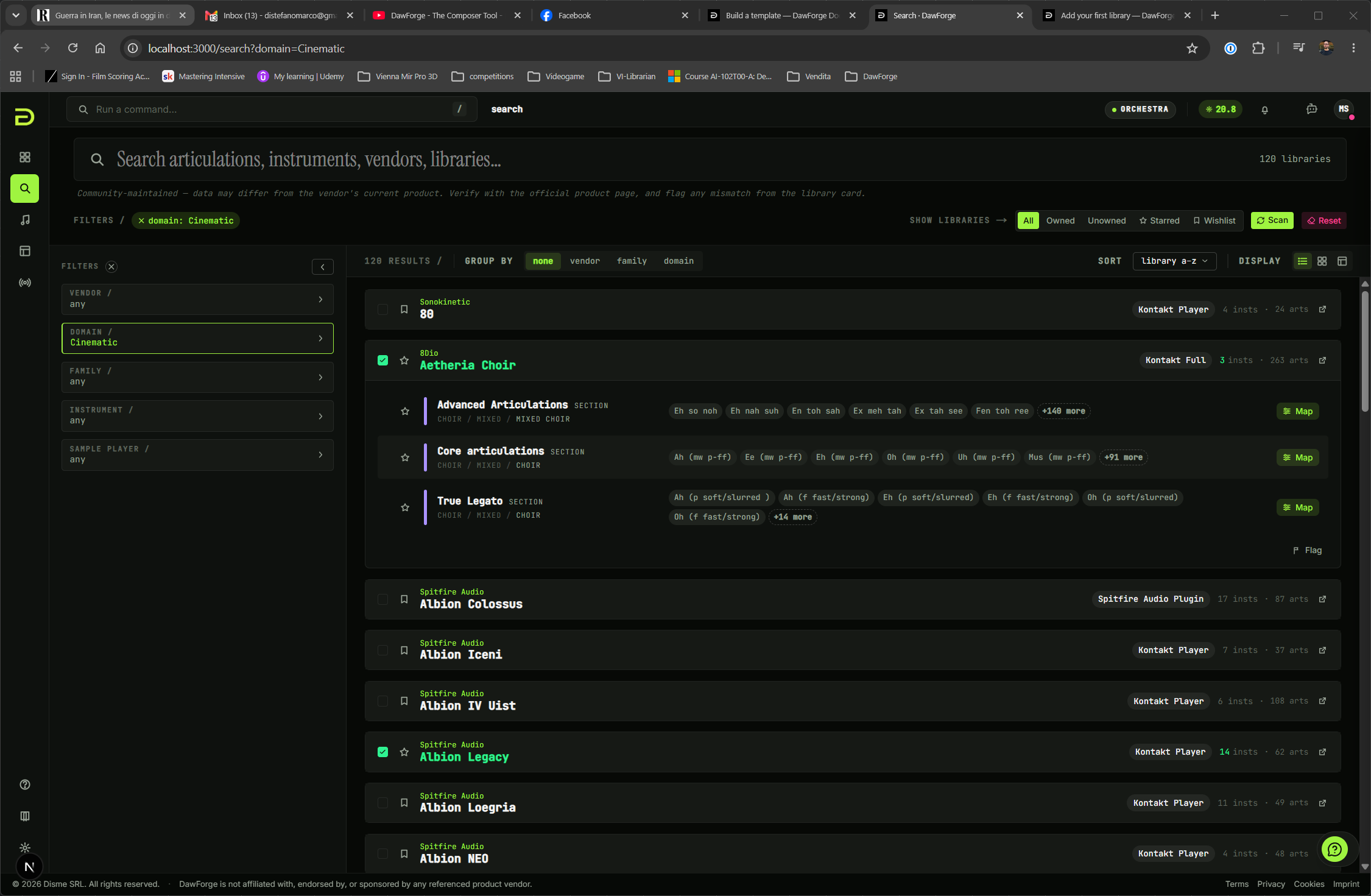
In the app, go to Search (/search). This is the library catalogue — every instrument in the knowledge base, searchable by name, vendor, or tag.
Find a library you own
Use the search box, the Vendor facet, or the tag chips in the left rail. Click into a library card to see the patches it contains — each patch lists its articulations, dynamics, mic positions, and the default MIDI output rule DawForge uses for it.
Acquire the library
On the library detail view, click Add to my library. This is a free action — it just marks the library as owned by your account so it surfaces under My Library and in the map / template editors. You can remove a library the same way.
To acquire one patch at a time, click Acquire on the individual instrument card.
Each plan has a cap on how many vendor libraries you can have acquired at once. Solo: 24. Chamber: 64. Orchestra: unlimited. The cap counts unique vendor libraries, not individual patches. If you hit it, drop an unused library or upgrade.
Confirm it shows up under "My Library"
Switch the catalogue toggle to My Library. The library you just acquired should be there. Anything in this view is what the map editor, template wizard, and Flow's articulation grid will draw from.
Verify it worked
The library shows up under My Library in the /search catalogue, and its patches appear in the "From library" picker when you create a new map or template. If you see the library in All but not My Library, the acquire request didn't land — refresh and try again.
If something went wrong
- "Vendor library cap reached" → you're at your plan's cap. Drop a library you're not using, or upgrade.
- Acquired library doesn't appear → hard-refresh (Ctrl/Cmd + Shift + R). DawForge keeps an offline copy of your owned libraries, and a refresh forces it to update.
- The library you own isn't in the catalogue → it hasn't been added yet. See Contributing instruments — DawForge accepts community submissions.
Next
Logic Pro quickstart
Get DawForge working with Logic Pro — build articulation sets, use the knowledge base, and control articulations from your phone.
Build your first expression map
Create a Cubase expression map from a curated knowledge-base patch in under a minute, then download the .expressionmap file.