
Building a map
The full workflow for the DawForge map editor — rows, outputs, groups, remote keys, round-trip with Cubase.
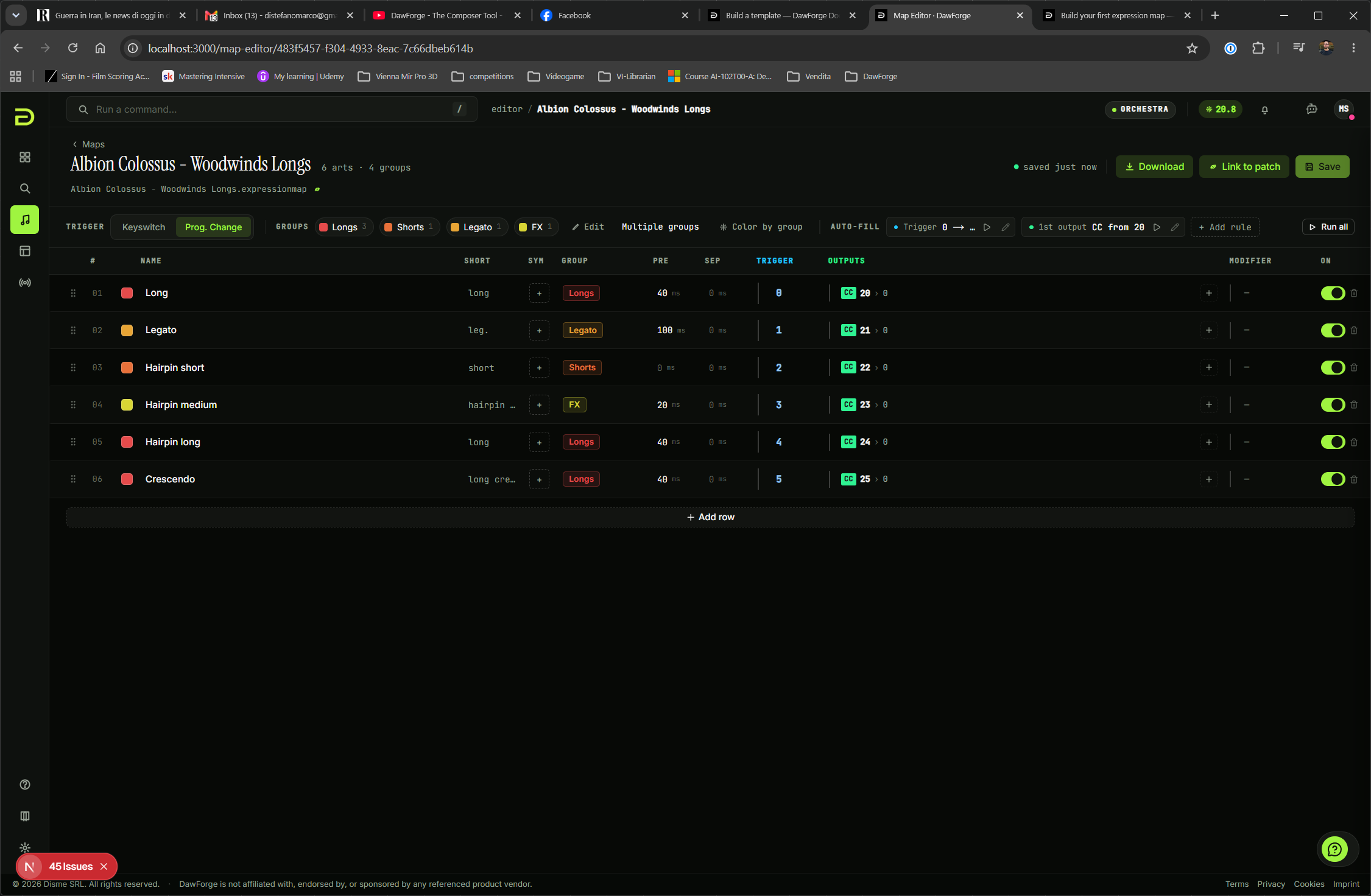
The map editor is where you author Cubase .expressionmap files (and Logic .plist Articulation Sets). This page covers the editor's main surfaces and the round-trip with the DAW. If you've never built a map before, start with Build your first expression map — it's the same editor, shorter path.
This video is hosted on YouTube
Loading it lets YouTube set cookies and receive your IP address. Accept external media to watch it here — see our Cookie Policy.
Three ways to start a map
- Blank —
/map-editor/new. An empty table. Use this when you're authoring a map by hand from library documentation. - From a knowledge-base patch — fastest. Every articulation is created with curated tags and the library's default MIDI output rule already applied. See Build your first map.
- From an existing file —
/map-editor/import. Accepts.expressionmap(Cubase),.plist(Logic), or a.zipcontaining several. DawForge keeps all the original data and locks each articulation's identity so the file comes back out exactly as it went in.
The articulation table
Each row is one articulation. The columns:
| Column | Meaning |
|---|---|
| Name | What appears in Cubase's Inspector and the Score Editor's expression lane. |
| Display | Short name for Cubase score view text. DawForge derives one if you leave it blank. |
| Tags | Canonical tag categories: length, technique, style, pattern, dynamic. |
| Group | 0–3, Cubase's articulation group for the score-editor lane. |
| Slot type | Attribute (sticks until changed) or Direction (one-shot). |
| Color | The color Cubase uses for the row. |
| Remote key | MIDI note that triggers this articulation when received from a controller. |
| Output | What DawForge sends out when the articulation is fired. Multiple outputs per row are supported. |
| Pre-delay | Attack compensation in ms (negative shifts note start later). |
| Separation | Separation timing in ms. |
The eye icon on each row disables it: the row stays in your map but is left out of the exported file.
Outputs: what actually fires
Each row has one or more outputs. An output is one of:
- Keyswitch — a MIDI note number on the configured channel.
- CC — a controller number + value (e.g., Spitfire UACC is
CC 32+ the patch's UACC value). - Program change — a program number on the configured channel.
DawForge fires every output on the row when the articulation triggers. Add a second output if your library wants both a keyswitch and a CC simultaneously.
Groups and the score editor
Cubase reserves four articulation groups (0–3), each shown as a separate row above the staff in the score editor. Use groups to keep concurrent dimensions clean — for example, length in group 0, mute / con sordino in group 1, mic position in group 2.
When you import a .expressionmap, DawForge keeps the original groups. When you create from a KB patch, groups are assigned by the curated tag taxonomy.
Saving and round-tripping
Save keeps the map in DawForge. Download exports the file. The round-trip is faithful: DawForge quietly tags each row with a hidden identifier that Cubase ignores, so re-importing a file you exported never re-shuffles your rows.
Logic Pro export
Same editor, different export. Once saved, hit Download → Logic (.plist) to get an Articulation Set. The map's outputs, names, and remote keys translate; tags and DawForge-only metadata are dropped. See Logic articulation sets for the format-specific notes.
Verify it worked
Open the exported file in your DAW and switch through the articulations. The active library should respond to each switch.
Common pitfalls
- Same remote key on two rows — only the first row wins. The editor flags duplicates.
- Group set above 3 — Cubase ignores the row in the score editor. Stick to 0–3.
- Output set but no library response — Cubase is firing the right MIDI; your library isn't listening to it. Double-check the library's documentation for the correct CC / keyswitch.
Related
- Concepts — what each part of a map means, in plain terms.
- Importing Cubase maps.